Category Archives: Computers

Archiving Files to 100GB Blu-ray BDXL

I wanted to archive a bunch of old files on our work Sharepoint site, M-DISC 100GB BDXLs are down below $10 now, still quite a bit more than a spinning disc, but nice to maybe not have to take care of spinning discs and their backups.

I have a 5.25 Pioneer Blu-ray drive at home hooked up to a Mac Studio that I use for ripping things, including UHD Blu-rays, all good there. I also have a LG WP50NB40 portable drive  flashed so it can read UHD Blu-rays, which is what I ended up using for this archiving project.

First thing I learned is that Mac OS does not have native support for high capacity Blu-rays. I think I tried using Roxio Toast, didn’t work and created a sloppy installation that was a pain to undo. So decided to give it a go on a Windows machine.

Windows supposedly has native support, but might not work so well for high capacity Blu-rays, so I settled on using BurnAware Professional. Managed to burn a disc without creating a coaster, then had problems with second disc. Problems with file name length, with deeply nested files with long names, and also files sizes, I am thinking 2GB might be a limit, so maybe I lucked out with the first disc. BurnAware does to a file check before you burn, so for at least some errors you can try to deal with them without creating a coaster.

And the way to deal with the files names and sizes was to use Keka on the Mac to create a segmented 7z archive, setting segment file size to 1GB. Preserves the file structure names. Second disc still threw an error near the end of the write, creating a coaster, and I solved that by lowering the write speed from 4x to 2x.
MailSteward Pro MySQL Database on External Drive

This is something I have tried to do in the past but never figured out, I knew it was a permissions thing, a bit of back and forth with ChatGPT and I finally figured it out. I did this as part of the migration from a Hackintosh over to a Mac Studio, so some notes on that too:

The help documents available from the current version of MailSteward Pro recommend using MySQL 5.6 and provide a link to that. Possibly a bad idea if you are on an Apple Silicon Mac. I installed 8.0.42. When you install you will be required to enter a MySQL root password. If you let the install fire up, and maybe even if you don’t, all the MySQL stuff is in /usr/local/mysql. There is a data folder in that directory, which is where databases will land, but it is not as simple as just copying it over to an external drive. Default permissions will not let you access the MySQL data folder, and when you create a folder on an external drive the Mac ownership permissions do not allow you to set the permissions you need to set.

Make sure MySQL is not running (you can quit it from the control panel, if it is), and change the path for the Data Directory to /Volumes/ExternalDriveName/DataFolderName (or the path to wherever you want the data to go). You could also update the paths for Error Log and PID File. Hit Apply.

Then go to Terminal and create the data folder:

sudo mkdir -p /Volumes/ExternalDriveName/DataFolderName

sudo chown -R _mysql:_mysql /Volumes/ExternalDriveName/DataFolderName

Then initialize the new data directory:

sudo /usr/local/mysql/bin/mysqld –initialize –datadir=/Volumes/ExternalDriveName/DataFolderName –user=_mysql

There will be some output in terminal, including a new MySQL root password, I wrote that down.

Then you need to edit or create /etc/my.cnf, putting in:

[mysqld]
# Location of your MySQL data
datadir=/Volumes/ExternalDrive/Folder

# Socket file for local connections
socket=/tmp/mysql.sock

# Error log and PID file
log-error=/Volumes/ExternalDrive/Folder/mysql.err
pid-file=/Volumes/ExternalDrive/Folder/mysql.pid

# Character set defaults
character-set-server=utf8mb4
collation-server=utf8mb4_general_ci

# Enable secure connections
ssl-ca=/usr/local/mysql/share/ca.pem
ssl-cert=/usr/local/mysql/share/server-cert.pem
ssl-key=/usr/local/mysql/share/server-key.pem

Finally,  if you want to change the MySQL root password:

mysql -u root -p

Enter your password, then you can change it:

ALTER USER ‘root’@’localhost’ IDENTIFIED BY ‘newpassword’;

FLUSH PRIVILEGES;

Using the MySQL preference pane to start and stop the server is fiddly, I think it is better to do this from Terminal with:

sudo /usr/local/mysql/support-files/mysql.server start

sudo /usr/local/mysql/support-files/mysql.server stop

sudo /usr/local/mysql/support-files/mysql.server restart

If you want to automate startup of MySQL with system startup that can be done with a launchd service (creating a .plist file). I have not done that yet, but probably will do, I think server overhead is low.


Mac Mice & Keyboards

In the past have always used Apple mice and keyboards with our Macs. Recently built a new home desktop hackintosh and a flakey old Mighty Mouse led me to look at other options. OMG I wish I had done this earlier. Replaced an old Apple wired keyboard with a Das Keyboard 4 Professional and it is very nice to type on. But I actually think I am going to take it to work, where lighting is brighter and more constant, and have ordered a Logitech MX Keys, which seems to be among the best of the backlit options, which is something I often wish I had when ducking in to the home office to look something up quickly without bothering to turn the lights on. I replaced my Apple Mighty Mouse with a Logitech MX Master 2S, and it is better in so many ways:

  • Ergonomics, it is comfortable
  • Good sensor that even works on glass, which is what my desk surface is, so no more mouse pads or pieces of paper
  • Better Bluetooth connection, my Mighty Mouse was at -57db, the Logitech is reading -46db, so it must have a MUCH better antenna

I have ordered a Logitech MX Master 3, which is supposed to be a little better for left to right scrolling with the thumb. The 2S will go to my office when the 3 comes in.

Kerio Connect Backups – Monitoring Size

At work we are using Kerio Connect running on a Mac Mini/OSX for our email. Every month I archive all mail to a MySQL database using MailSteward Pro, but I also use Kerio Connect’s built in backup capability to do incremental and once-weekly full backups. The backups can take up quite a bit of hard disk space, and it is not dead simple to check on space being consumed:

Open a Terminal window.

Enable SuperUser user by typing sudo su – root and entering your password.

Navigate to usr/local/kerio/mailserver/store/backup. I am not a Unix whiz, I use these commands to get around:

pwd to show the working directory

cd .. to move up a level

cd <directory name> to move into a directory

ls to show what is in a directory

ls -l to get more details about what is in a directory

du -hs to show the size of a current directory

Fujitsu fi-7160 on Mac OSX

I have been happily using a Fujitsu ScanSnap S1500M and also a iX500 with ScanSnap Manager and DEVONthink Pro Office on Mac OSX, as I try to de-paper home and office. I recently bought a fi-7160, thinking it would be nice to go from 25 ppm to 60 ppm (premium for the 80 ppm of the fi-7180 was still a little high).

Issue is that Fujitsu does not have OSX drivers for the fi series of scanners. fScanX and VueScan support the fi scanners in OSX, but functionality of these is limited compared to what you get with (the OSX version of) ScanSnap Manager. So I decided to set up document capture for the fi-7160 with the Fujitsu software in a Windows 7 VM in Parallels.

First trick is that you need to copy the contents of the install disc to the local drive in the VM, otherwise you get path errors that prevent the installers from running.

Second, the install takes a lot of room, so you may need to quit the VM, go to Configure, and increase the size of the VM hard drive.

Turning Off 2-Sided Printing in OSX

I think a lot of people struggle with turning off 2-sided printing for network printers. I know I used to struggle with it. Doing this is not hard at all but requires nerd level knowledge (of CUPS, which is what OSX uses for printing) or a simple DIY. Here is the simple DIY:

Launch the Terminal application and type in the following:

cupsctl Webinterface=yes

In Safari enter 127.0.0.1:631 into the browser bar

Go to Administration, Manage Printers, pick the printer, under the Administration drop down pick Set Default Options

Go to General, set 2-Sided Printing to Off, and then click on the Set Default Options button

Modern Home Audio & Video – Roon and Plex

I am in the process of updating our home audio and video distribution and am of the opinion that Roon is the way to go with music, and Plex is the way to go with video. You could go with a whole-home system like Crestron or Control4, but Roon and Plex are more focused applications with deeper functionality, and they play nice with each other and with hardware most people already have.

Roon is a great way to explore and send music around the home, including sending high resolution music to high quality endpoints. Probably best from a large touchscreen computer, but also great using an iPad to control. I have the server running on a small hackintosh with files sitting on NAS. I am re-ripping a few CDs to replace lossy files with lossless ones now using dBpoweramp, which is the way to go, good for meta data and lets you check accuracy of rips. I maintain an iTunes library on an old Mac Pro, and sync the library out to the NAS every once in awhile. Roon also includes integration of our TIDAL account. I have written more on Roon in another post, for serious listening I am using a Meridian endpoint with Meridian DSP speakers.

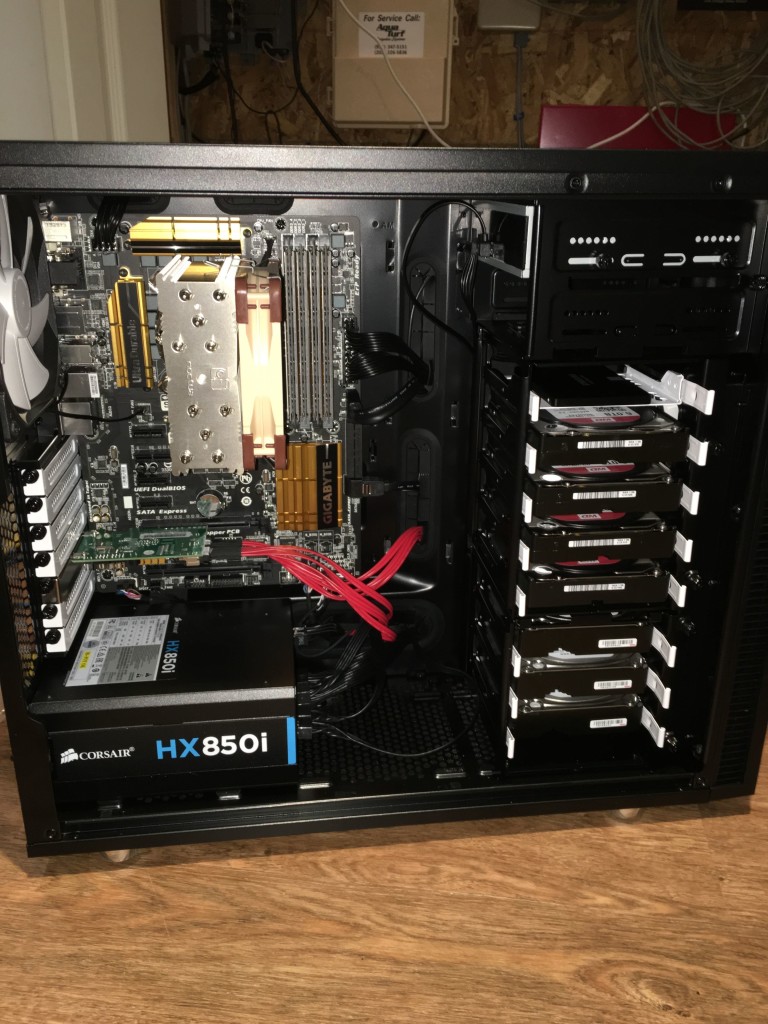
Plex seems like a great way to browse and distribute video content, and I recently set up a hackintosh Plex server with 24TB (4x6TB WD Reds) of storage in RAID0, and another 24TB (3x8TB Seagate archiving HDs) of storage for a backup. I use RipIt to move DVDs to the hard drive, and then Handbrake to create m4v files for Plex. In the rare case where there is a problem with Handbrake I use MakeMKV to create mkv files, which Handbrake can then transcode to m4v. I also use MakeMKV to create mkv files from BluRay discs, and then Handbrake to create reasonably sized m4v files. I am tossing all of my DVDs and keeping the RipIt generated copies on the Plex server. BluRays for now I am keeping the discs, mkv files are just a little too big. For things I have purchased on iTunes, I use Tune4Mac iTunes Video Converter Platinum to strip off DRM and put copies in the Plex library. I use Plex Home Theater (running on my Roon server) to send video to the main screen in the house (75 inch Samsung) with audio going to the Meridian system (Plex Home Theater interface is not so great, I find it is easier to control it remotely using the Plex app on an iPad). The Plex server can also be accessed using tablets, and unlike Roon server can even be accessed outside the home, transcoding to deal with the more limited bandwidth for that. Very slick. I used to think it would be nice to have a Kaleidescape system, but now I think Plex is better and at a small fraction of the cost (PRIMA Cinema is still pretty cool for stuff in theaters, but crazy expensive, more for people who have to worry about Paparazzi). I went overboard with my Plex server, it is an i7 4790 with 32GB of memory, and as I described already, a lot of storage. Pic below.

IMG_1523

Roon, Meridian, and High-End Distributed Audio

Long time Meridian fanboy and owner here, I think their DSP speakers sound great and the preservation of the digital path until the last possible moment appeals to my inner nerd. Our gear is getting a bit old but still sounds great, a 568.2MM with DSP5500 mains, a DSP5000C, and DSP33 rears. For distributed audio we were early Sonos adopters and have five additional zones in our home, and use the Sonos to feed the Meridian system with lossless files on a NAS and also Tidal hi-res streaming. Works pretty well, though multiple remotes are involved, a MSR and an iPad. The Sonos zones are decent quality ceiling speakers, for non-critical/casual listening.

My wife and I are in the process of having a new home designed which we will then have built, so I have been doing some thinking about how we will handle audio in the new home. Which home will be a bit smaller so maybe fewer audio zones, so thinking to have higher quality speakers and more tightly integrated systems would be nice.

I think the reason we went Sonos instead of Sooloos was mainly that I don’t much care for expensive proprietary boxes that are little more than cheap computers, albeit with some good software. Sonos might have had the UI going a little bit earlier too.

Meridian ditching the proprietary Sooloos boxes, allowing the core to run on a QNAP, got me more excited about doing Meridian DSP in-walls for a few zones in the new home, so I got a MS200 to be able to play with that for a bit now. But Meridian has been slow to deliver on the QNAP core (though I saw it running in their NYC office a couple of months ago), and then I stumbled on Roon, developed by the Sooloos people, ready for prime time, not tied to any particular hardware, but plays nice with Meridian, I was sold. I didn’t even bother with the trial, I plonked down for a lifetime subscription.

I hooked the MS200 up to our 568 with a Reviver, loaded Roon server up on a quad-core i7 hackintosh we use as a HTPC, and it was pretty much off to the races, we have the server watching the music on the NAS and our Tidal account is linked up. The 568 does not power on/off with the Roon app, but volume control working fine. My wife and I are still getting used to the Roon app (actually we are still getting used to the Tidal app too), but my sense is that this is what we will be using in our new home, probably moving the server to a large touchscreen PC, seems like people are using Lenovos or HPs, 27″ might be a little big for living area, I am thinking a 24″.

SIP/VoIP For Home, Callcentric and Panasonic KX-TGP500

I have put a couple of businesses on, and for work am currently using, SIP phones with OnSIP hosting services, which for the most part works great. Very reasonable, and the flexibility is nice, the ability to use multiple phones, smart phones, and soft phones. Recently I decided to go over to SIP phones at home too, pulling the plug on the “triple-play” line and a Vonage line, both also VoIP, via analog phones and thus handcuffed to the phone wiring in the house, amongst other things.

OnSIP does not really offer anything that makes sense for home use, you used to be able to have a totally a la carte account, but now I think you have to have a plan. So I poked around and settled on Callcentric, and ported the Vonage and triple play numbers over. Initially I went with snom m9r DECT phones, but my wife didn’t like them because they are pretty small, small buttons, hard to read, etc. We had Panasonic wireless phones before, so to get her with the program I then went with the Panasonic KX-TGP500 and an extra KX-TPA50 handset. Form factor of the phones is similar to their wireless phones that work with an analog phone line. Setup of these phones with Callcentric was not completely straight forward, so this note. By the way, the Callcentric support is pretty good. You support a ticket and in short order you have a reply, and you can go back and forth several times in an hour or two and they got me sorted out (they did not have experience with Panasonic phones, but told me there were users with the same phone, and were happy for me to send them screen shots of configuration screens to get things going).

The Panasonic documentation, on the other hand, is fairly lame. I think there was a Quick Guide, a User Manual, and an Administrator Manual, the latter two running into the hundreds of pages. I did manage to find how to access the web portal once the base unit is connected to the Internet. I used IP Scanner to find the base unit, but if you put the IP address into your browser nothing happens. Not like other SIP phones (Polycom, Cisco, snom, at least). You actually have to enable the web user interface, which you do from a handset by  pressing the menu button, and then #534, and turning on “EmbeddedWeb.” That is intuitive (not). The default username and password for the base unit are admin and adminpass respectively (that is somewhere in the manuals too, maybe).

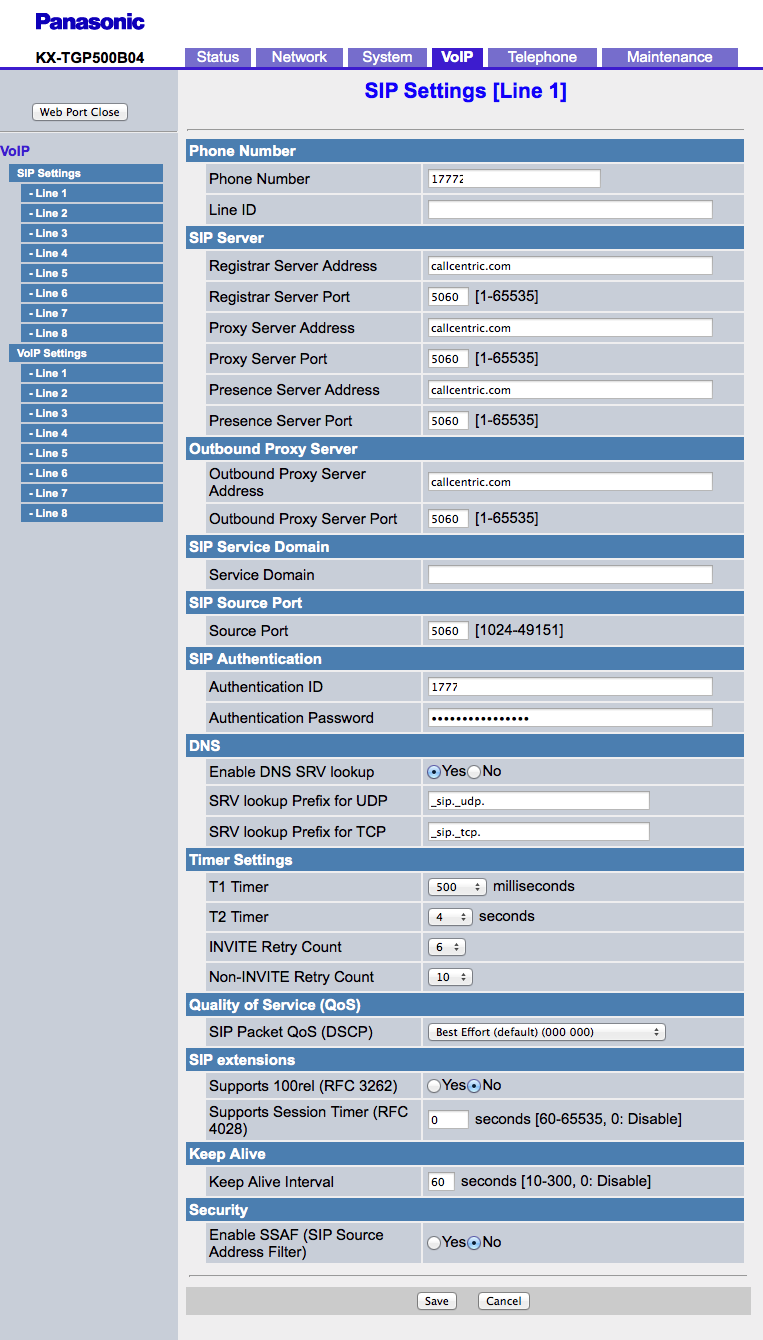
Here are the SIP settings to get the phone registered with Callcentric:

SIP Line 1

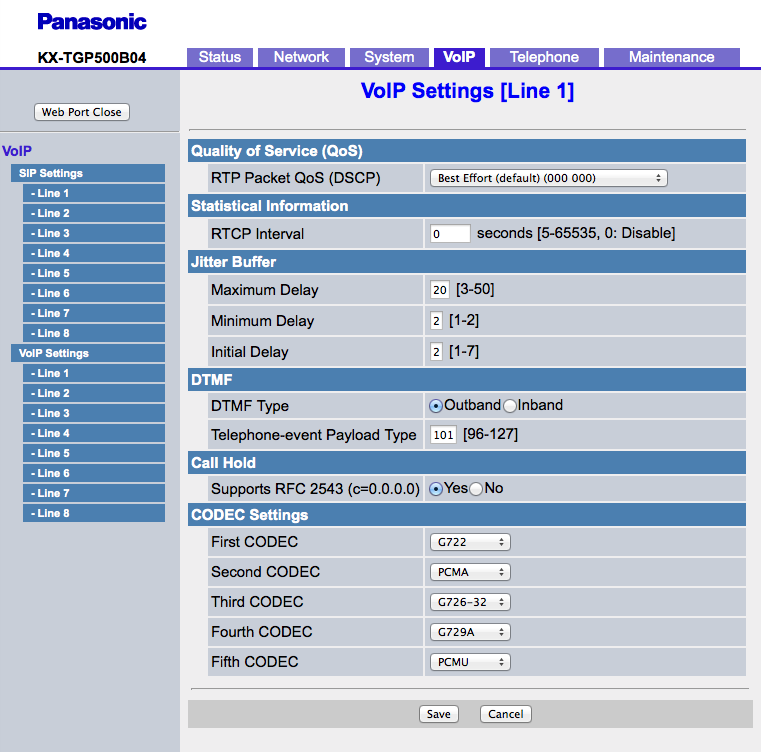
And here are the VoIP settings:

VoIP Line 1

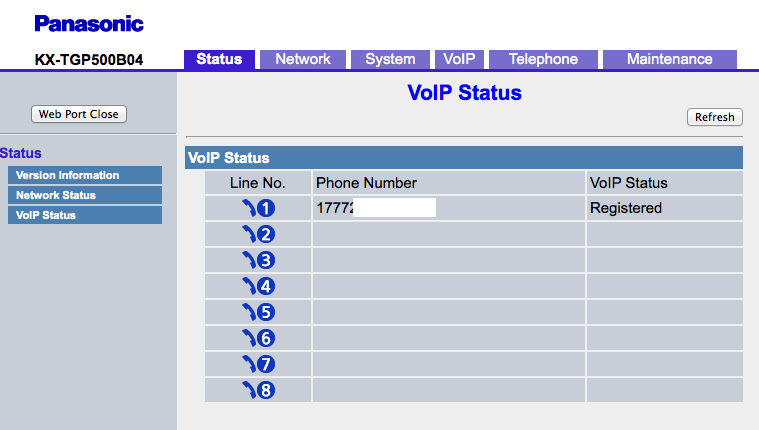
Restart the phone (Maintenance tab), and you will get this:

Voip Status

I should probably do another post on Callcentric, but like I said, their support is good, don’t be scared to ask them questions. The gotcha for me was trying to have multiple devices registered with an Extension, which was a carryover from the User based OnSIP administration. Callcentric is extension-based, one device per extension.